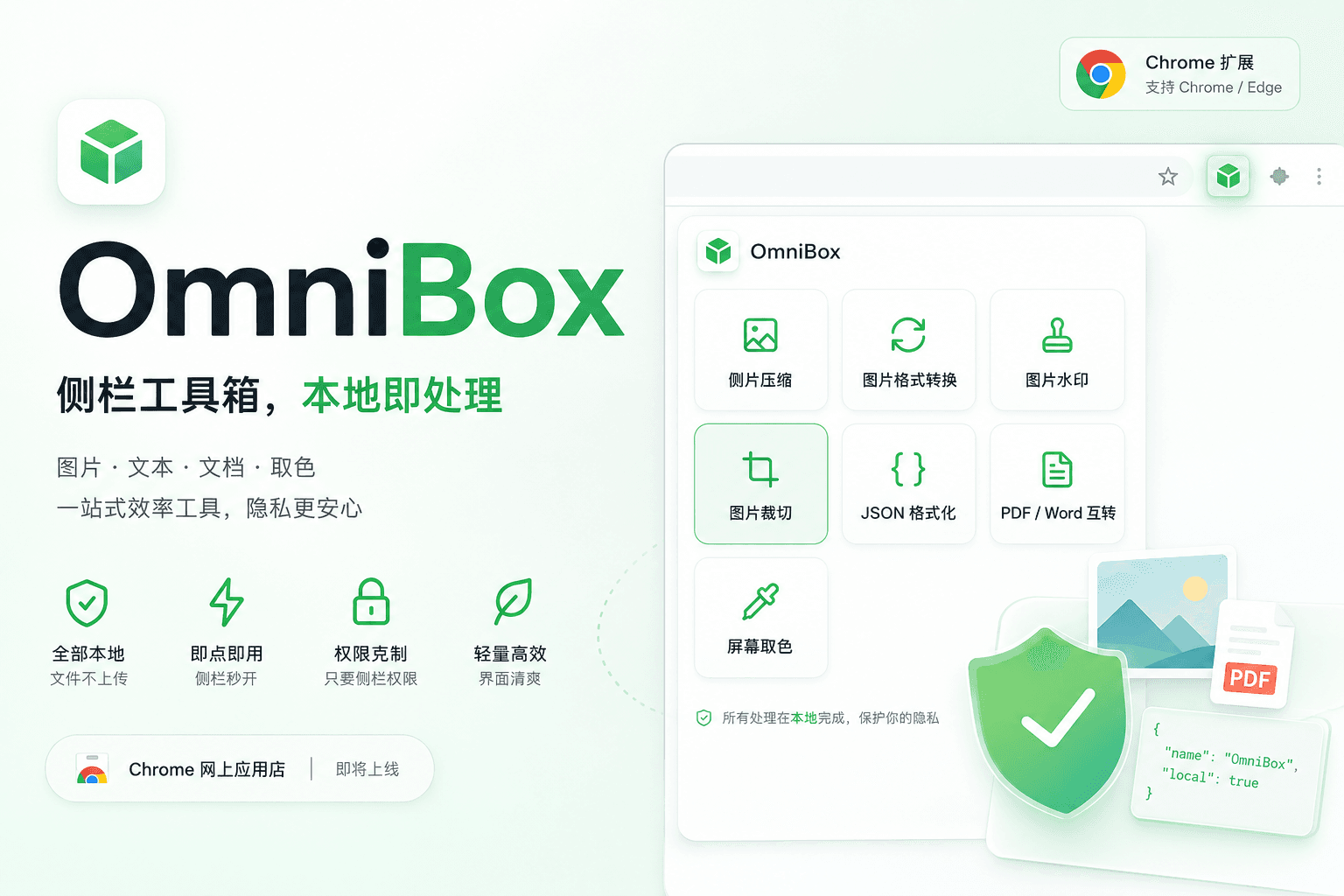
In daily work and development, many tedious tasks require leaving the browser: compressing an image, converting formats, adding watermarks to assets, organizing JSON snippets, or repeatedly switching between PDF and Word files. OmniBox gathers these frequently used micro-tools into the browser sidebar, allowing you to handle them right where you are—without opening extra websites or transferring files.
The product adheres to two core principles: "lightweight" and "local-only." The extension is compact in size, requesting only sidebar permissions. Images, documents, and text are processed locally by default, never passing through cloud servers. The interface uses a fresh green-and-white color scheme with clear icons; tools are accessed on-demand and exit immediately, making it ideal as a long-term efficiency panel rather than another heavy online suite.
Sidebar-Ready
Click the extension to open the tool directory instantly—no need to leave your current tab. Perfect for handling assets while browsing, reducing workflow interruptions.
Fully Local
Core operations like compression, conversion, watermarking, cropping, and document/JSON interchange are performed entirely within the browser. Files are never uploaded to OmniBox servers, and no external accounts are required by default.
Minimal Permissions
Currently only requests sidebar-related capabilities, avoiding unnecessary host access. If something can be done locally, it stays local.
Comprehensive Tools
Covers common productivity scenarios: image editing, text organization, document conversion, and screen color picking. Future expansions will follow user needs, maintaining the experience of "one entry point, multiple handy tools."
Clean Interface
Tools appear as app-style tiles with clear names and icons. Minimal but essential parameters, with clear preview and download paths—low learning curve.
Image Tools
- Image Compression: Compresses images using local Canvas, adjustable quality and maximum side length—ideal for posting or pre-upload size reduction.
- Format Conversion: Supports bidirectional conversion among JPG / PNG / WebP / GIF / BMP / ICO / TIFF / SVG / AVIF, preserving original dimensions and supporting icon formats.
- Watermarking: Adds local text watermarks with options for tiling, placement, font size, transparency, rotation, and color.
- Cropping: Select and crop via drag-box, supports free ratios and common fixed ratios, with real-time preview before download.
Text & Documents
- JSON Formatting: Formats, minifies (removes whitespace), and validates JSON—all locally, perfect for API debugging and configuration checks.
- PDF / Word Conversion: Converts between PDF and DOCX locally. Best suited for text-heavy documents; complex layouts, headers/footers, tables, and embedded images are approximated—manual review recommended. Scanned or image-based PDFs currently do not support OCR.
Color Picking
- Screen Color Picker: Uses Chromium’s EyeDropper API to pick colors from any screen location, outputs HEX / RGB / HSL, one-click copy. Colors are displayed and stored locally only.
- Content & Operations teams: Frequently adjust image size, format, and add watermarks, seeking to minimize app switching and avoid online upload sites.
- Frontend & full-stack developers: Need to format JSON, take screenshots, extract colors, or quickly crop assets while coding.
- Office & collaboration users: Occasionally need to convert between PDF and Word without risking sensitive files on unknown websites.
- Privacy-conscious users: Prefer everyday tools to stay on-device, with full control over data flow—no account signups needed for basic functions.
- Pre-upload Image Compression: Adjust quality and max dimension, preview file size change, then download.
- Uniform Format Conversion: Convert PNG, WebP, ICO, etc., to target format while keeping original dimensions—fully local.
- Copyright & Brand Watermarking: Add text watermarks to exported images, placed tiled or in corners.
- API Debugging: Paste response JSON, instantly format or minify, quickly verify validity.
- Lightweight Document Conversion: Swap text-based PDFs and DOCX files locally—avoid temporary uploads to third-party converters.
- Design Color Sampling: Extract colors from web pages or any screen area, copy HEX / RGB / HSL for design mockups or CSS.
- OmniBox runs in the sidebar; screen color picking relies on Chromium’s EyeDropper API—use in Chrome, Edge, or compatible browsers.
- PDF/Word conversion targets text-focused documents. Complex layouts, headers/footers, tables, and embedded images may not be fully preserved—please manually verify results. Scanned or image-based PDFs are not supported for OCR in this version.
- All image and document processing happens locally. Please manage your own downloads—uninstalling the extension won’t delete files already saved to disk.
- Search for OmniBox in the Chrome Web Store and add to your browser; or load the packaged extension via official instructions.
- Click the toolbar icon to open the sidebar, then navigate to the desired tool.
- Drag in files or paste content, adjust settings, preview results, then download.
OmniBox’s core features are free to use, require no subscription, and no account registration is needed to access local tools.
A great browser toolbox should be light enough to keep around, local enough to trust with your files, and simple enough to find the exact button you need in the sidebar.
OmniBox: Sidebar Toolbox, Local Processing.